Haunted by Plugins: How WordPress Bloat Is Quietly Killing Your Business Website
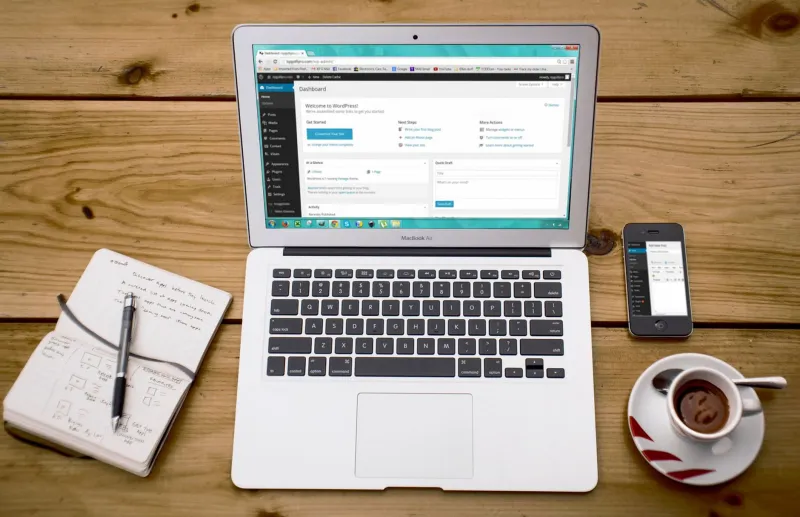
There's a particular kind of chaos that only reveals itself when you look under the bonnet. You open up a client's WordPress dashboard for the first time and there they are — rows upon rows of plugins, some active, some deactivated, some with update notices that have been politely ignored since the tail end of the last decade. It's less a website admin panel and more a digital attic.
We see this constantly across Surrey and beyond. A business owner builds their first WordPress site, installs a handful of plugins to add features, and then — quite reasonably — gets on with running their actual business. The website ticks along. Until, gradually, it doesn't.
The Problem With 'Set and Forget'
WordPress plugins are genuinely brilliant. They let you extend a website's functionality without writing a single line of code. Need a booking form? There's a plugin. Want a cookie consent banner? Plugin. Fancy integrating your Mailchimp list? You know the drill.
The trouble is that installing a plugin is dead easy. Removing one — really removing it, understanding what it does and whether you still need it — requires a moment of deliberate thought that most busy people never quite get around to.
So plugins accumulate. The SEO tool you installed before switching to a different one. The slider plugin that came bundled with a theme you no longer use. The social sharing widget that stopped working when a social network changed its API. They sit there, deactivated but not deleted, or worse, active but entirely forgotten.
And they're not just taking up space. They're actively costing you.
What Forgotten Plugins Actually Do to Your Site
Let's be specific, because vague warnings about 'performance' don't really land until you understand the mechanics.
Security vulnerabilities accumulate fast. Every plugin is a door into your website. An unmaintained plugin — one whose developer has stopped releasing updates — is a door with a broken lock. WordPress powers roughly 40% of the entire web, which makes it an extraordinarily attractive target. Attackers don't need to find your site specifically; they scan for known vulnerabilities in popular plugins and hit every site running them automatically. If you've got an outdated plugin sitting on your site, you may already be on that list.
Page load times suffer more than you'd expect. Even deactivated plugins can leave behind database tables, options records, and residual code that WordPress has to wade through on every page load. Active plugins that phone home to external servers — checking for licence validity, loading remote scripts, pulling in third-party fonts — add HTTP requests that compound into real, measurable delays. And in the post-Core Web Vitals era, those delays translate directly into lower search rankings.
Conflicts create invisible breakages. Two plugins written by different developers, neither of whom knows the other exists, can clash in ways that are genuinely difficult to diagnose. A JavaScript conflict might break your contact form in one specific browser. A CSS collision might make your checkout button disappear on mobile. These aren't hypothetical — they're the sorts of issues we're asked to investigate on a fairly regular basis.
The Plugin Audit Framework: A Practical Starting Point
If any of this is ringing uncomfortable bells, here's a straightforward process for getting things under control. You don't need to be technical to work through most of it.
Step 1: Take a full inventory. Log into your WordPress dashboard, go to Plugins > Installed Plugins, and export or screenshot the full list. You want to see everything — active and inactive. This is your starting point.
Step 2: Categorise by function. For each plugin, ask: what does this actually do? You'll likely find several categories emerging — SEO, performance, security, forms, e-commerce, analytics, and a fair few that you genuinely cannot identify. The ones you can't identify are a priority.
Step 3: Check the maintenance status. On the WordPress plugin directory, each plugin shows when it was last updated and whether it's been tested with recent versions of WordPress. Any plugin that hasn't been updated in over a year and hasn't been tested with your current WordPress version is a candidate for removal or replacement.
Step 4: Audit for duplication. It's remarkably common to find two plugins doing essentially the same job — perhaps installed at different times by different people. Two caching plugins. Two SEO tools. Two contact form builders. Pick one, migrate any content or settings, and cut the other.
Step 5: Apply the 'if in doubt, cut it out' rule. For anything you're genuinely unsure about, deactivate it and monitor your site for 48 hours. If nothing breaks, delete it. If something breaks, you've identified a dependency you didn't know you had — which is itself useful information.
Step 6: Establish a review cadence. A plugin audit shouldn't be a once-in-a-blue-moon event. Build a quarterly check into your website maintenance routine. It takes twenty minutes and pays dividends in performance and peace of mind.
The Replacement Question
Sometimes the right answer isn't simply deleting a plugin — it's replacing it with something better maintained, or better yet, building the functionality natively into your theme or custom code. A bespoke solution written specifically for your site will always outperform a general-purpose plugin that's trying to serve a hundred thousand different websites at once.
This is particularly true for things like custom post types, simple animations, or basic form handling. What a plugin does with fifty files and a database table, a competent developer can often achieve with twenty lines of clean, lightweight code. The result loads faster, breaks less often, and doesn't come with the ongoing anxiety of watching for security patches.
A Note on the 'Free' Plugin Trap
There's a cultural tendency — especially among small businesses watching their budgets carefully, which is entirely understandable — to reach for free plugins wherever possible. And many free plugins are excellent. But free doesn't mean without cost. A free plugin that slows your site by half a second costs you in lost conversions. A free plugin that gets hacked costs you in reputation, recovery time, and potentially GDPR headaches you really don't want.
The economics of quality tooling are worth thinking about. A well-supported premium plugin, or a modest investment in custom development, often works out cheaper over a three-year horizon than the accumulated drag of free alternatives.
Doing the Dorking Thing
At WebDorking, we're firm believers in looking closely at things other people gloss over. The plugin graveyard on a WordPress site is exactly the kind of problem that gets ignored because it doesn't announce itself loudly. There's no error message, no obvious crash — just a slow, steady accumulation of digital dead weight that quietly erodes everything you're trying to achieve.
If your WordPress site is feeling sluggish, if your security scanner is throwing up warnings, or if you simply can't remember the last time anyone looked properly at what's installed — it's probably time to do a bit of digging. The answers are usually uncomfortable, occasionally alarming, and almost always fixable.
Start with the inventory. The rest follows from there.